Connect AI to your work tools
In this chapter you will learn to
- Connect your first work tool the safe way, read-only.
- Get a daily brief of what needs you, drafted not sent.
- Know exactly what to never connect.
Stop pasting text in and out of a chat. This chapter lets an agent read your real email, calendar and files, with your hand on the brakes the whole way.
01The problem
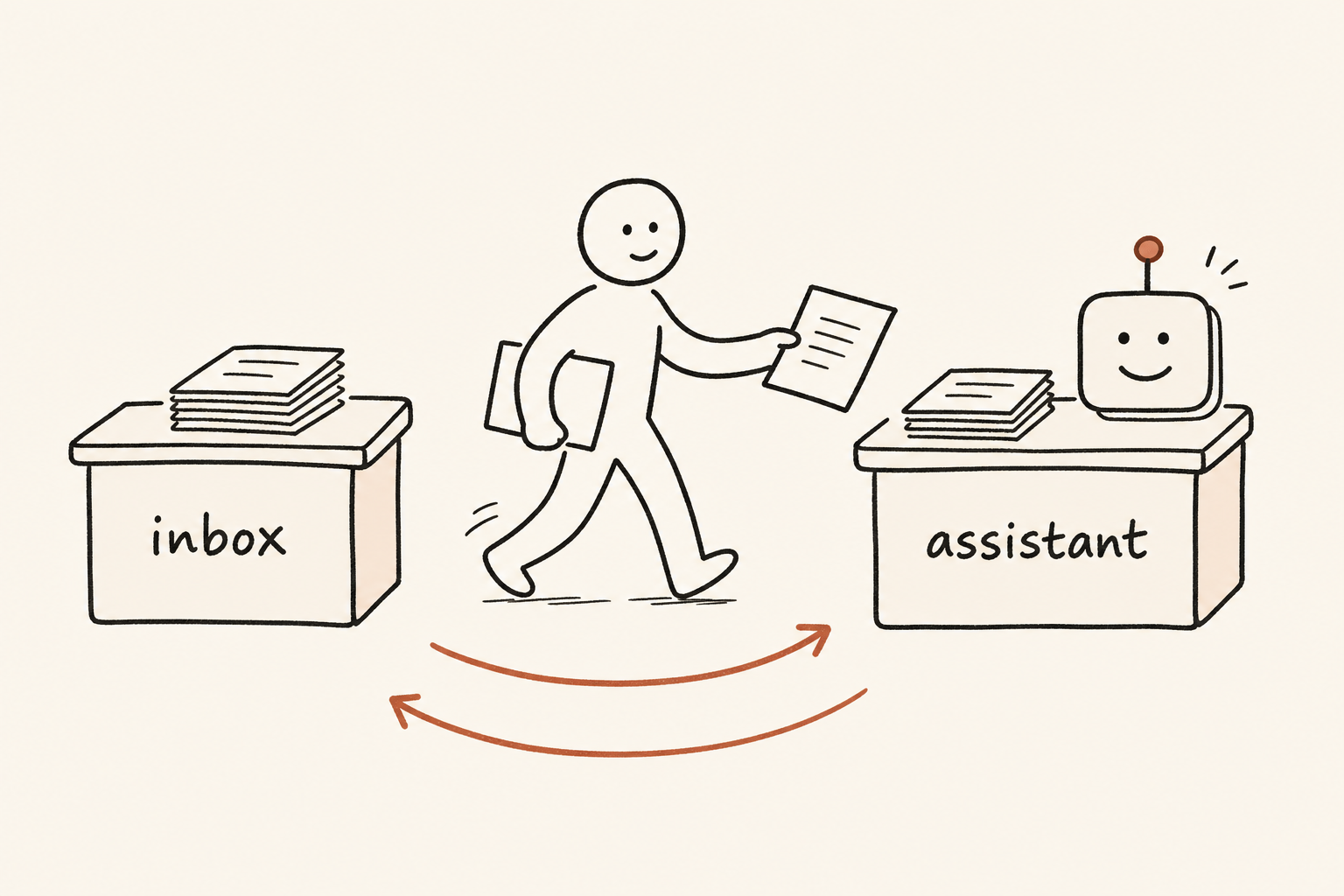
Right now you're the courier, and the agent is always one step behind your actual week.
You copy an email in, read the reply, paste the next bit, repeat. The agent only knows what you've just hand-fed it.
So when you ask "what did the supplier agree to last week, and when's our next delivery?", you get a polite guess. It can't look, so it doesn't know.
02The shift
Give the agent permission to read your actual tools, and the work goes from "copy, paste, copy, paste" to "just ask".
Connecting means letting an agent read from, and sometimes act in, apps you already use: email, calendar, your files or shared files, work chat, notes, your CRM.
There are three common ways in, none of them technical. You approve a link between an app and the agent. They differ only in reach.
A connector is a permissioned link to another tool. Keep the idea simple: it can read or act only where you approve it.
- Built-in connectors. Your AI provider may already offer a link to a common app. Click "connect", log in, read the permission list, approve only what you understand, done.
- Shared connector services. Some tools expose the same app to several AI products. You don't need the protocol. You only need to know who built it, what it can read, what it can change, and how to remove it.
- Automation tools. These connect several apps and run a recipe on a schedule or trigger. Treat them as later-stage setup, not day-one work.
Here's what makes it worth it: a connection changes what the agent can do, not just what it knows. Reading your data is one level of trust. Acting on your behalf is another, and that's why we go slowly.
03Watch me do it
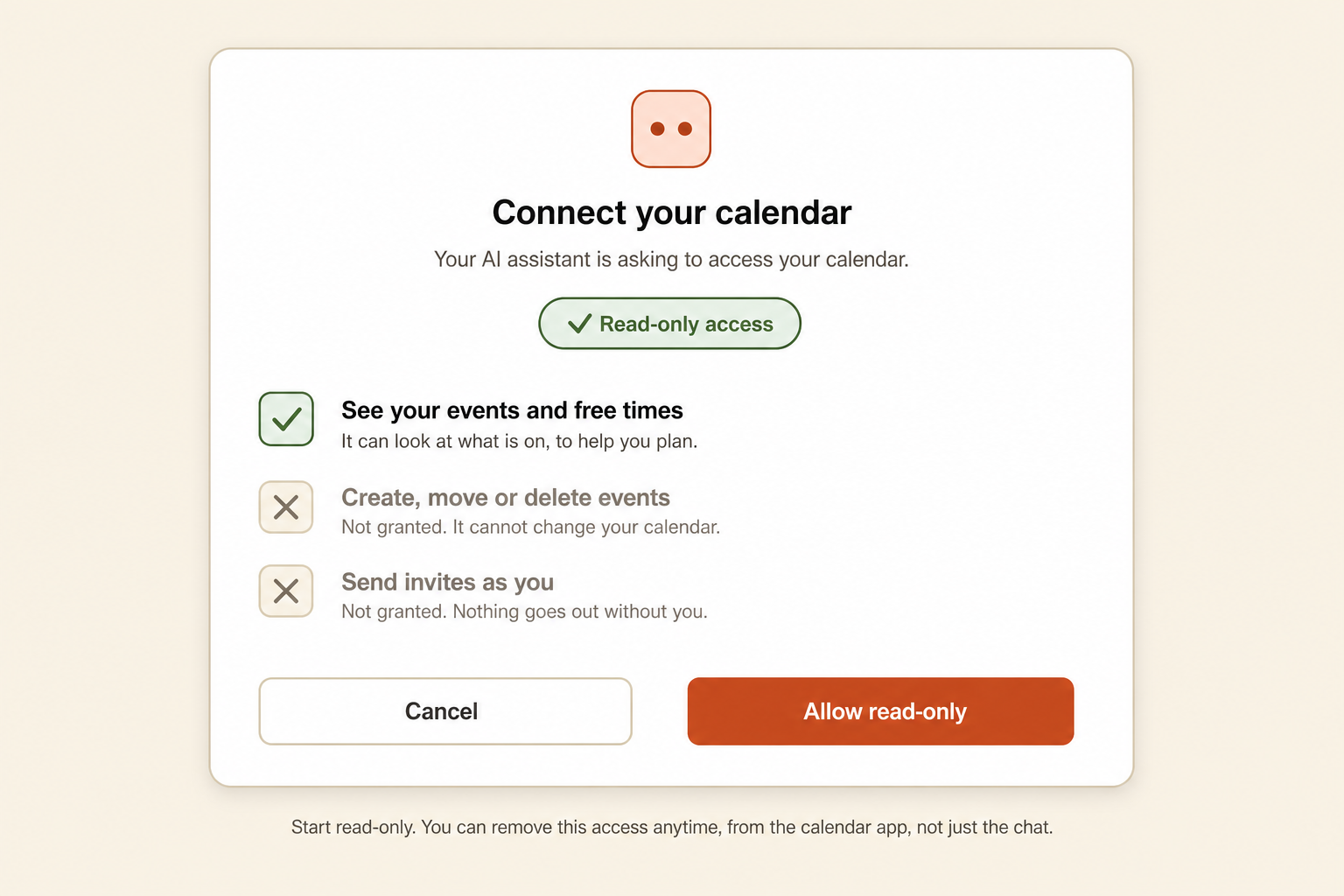
The move that prevents every scary moment: connect read-only first. See before you let it act.
In my own work, the safest useful connections are read-only access to email, calendar, notes and files. That single choice is what keeps it safe.
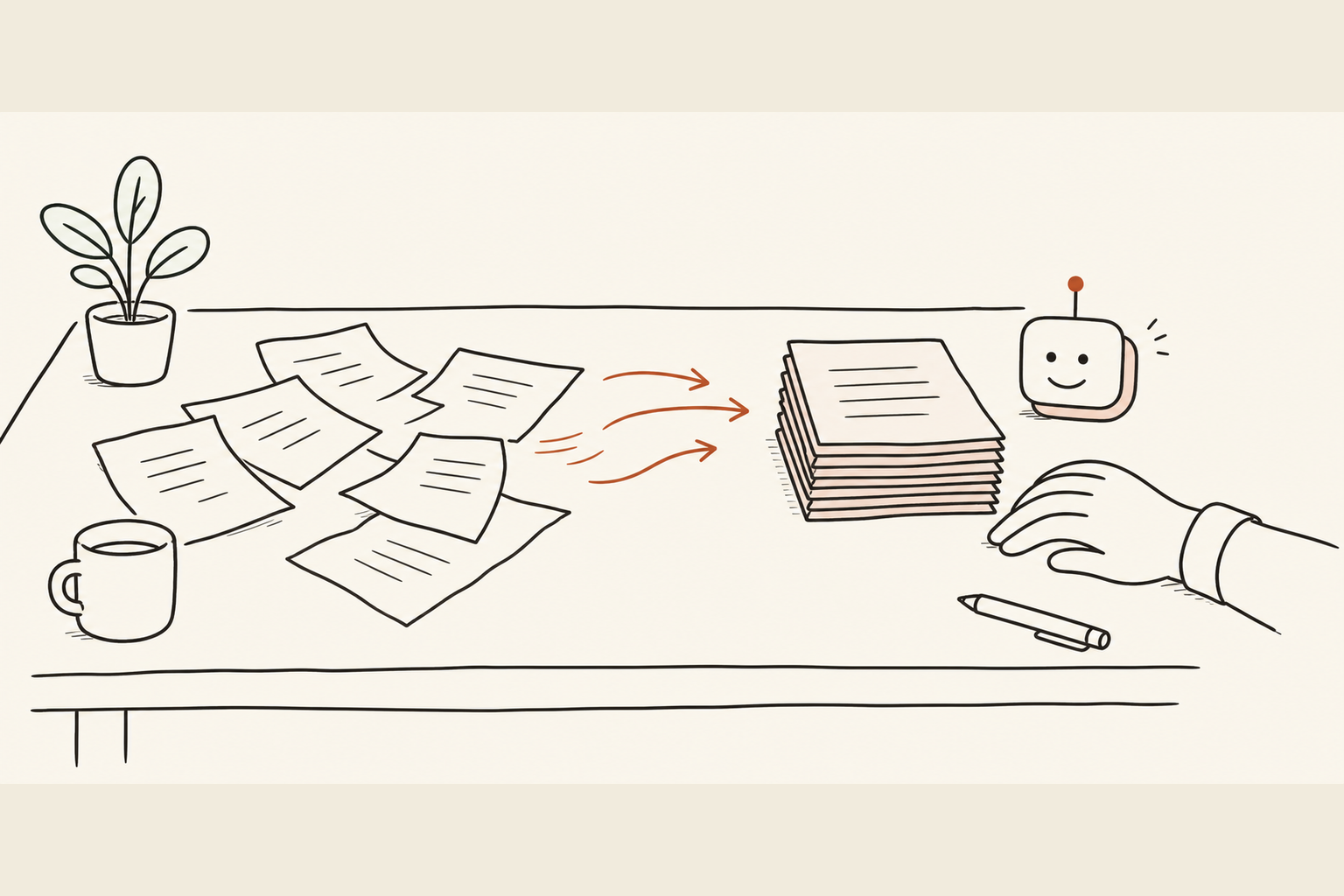
- Most mornings. I ask it to scan approved sources, group the mess by customer, project or day, and tell me the three things that need me. It reads, it summarises, I decide.
- When I let it draft. A reply that lands in my drafts folder beats anything that fires off on its own. Boring and reversible.
- For non-office work. The same rule works for supplier emails, booking notes, rosters, job calendars and stock sheets. Let it read, make it draft, then you decide.
The rule I never break: the agent proposes, I press send.
Two more habits that keep me out of trouble:
- Connect a notes app too. If your notes are approved for this, connect only the workspace or folder the agent actually needs. The thinking sticks around in a place you own.
- Stay picky about scope. I'd rather connect one app well than ten I don't watch. Every connection is a small standing risk, so once a month I open the permissions screen and disconnect anything I haven't used.
04Your turn
Start with one app, read-only, low-stakes. Calendar, notes or a single project folder are good first picks because the worst case is mild.
One trustworthy connection beats five you don't understand. Don't wire everything up in one sitting.
- 1Open your agent's settings and find connectors or integrations.
- 2Connect one low-risk source, such as your calendar, notes or a single project folder. Log in, read the permission list, and choose read-only if it's offered.
- 3Ask something you already know: "what meetings do I have on Thursday?" or "what files are in this project folder?" If it matches reality, the connection works.
- 4Try a small task: "find a free 30 minute slot next Tuesday afternoon." Still just reading and suggesting.
- 5Only once that feels solid, consider one app that can act, and keep it reversible (drafts, not sends).
- 6For anything spanning several apps or steps, use an automation tool so the recipe is explicit.
The prompt. Run this once one low-risk source is connected read-only, as a safe first test.
You now have read-only access to [CALENDAR, NOTES OR PROJECT FOLDER].
Do not create, edit, delete or send anything. Only read.

Please do three things:
1. List the relevant items you can see, grouped by day or project.
2. Flag anything urgent, stale or overloaded.
3. Suggest the next two safe actions I should review.

Show your answer as a short summary first, then the detail.
If anything is unclear or you cannot see an event, say so plainly
rather than guessing.
If the summary matches what you already know, the connection is useful. If it invents or misses something obvious, you've learnt that before any harm is done.
Keep a connection log. This is your starter skill and the single best protection you have. A note or small table is plenty. Copy this and fill one row per connection:
CONNECTION LOG

App connected:        (e.g. your calendar)
Connected to:         (e.g. email, calendar, notes)
Date connected:
Access level:         (read-only / read and write)
Why I connected it:   (one line)
Can it act on its own? (yes / no. If yes, what)
How to disconnect:    (where the off switch lives)
Last reviewed:
Once a month, open the log and the provider's connectors screen side by side. Disconnect anything you haven't used, can't explain, or that has broader access than the job needs. Five minutes, pays for itself.
Do this now. Connect one low-risk source read-only, run the prompt above, check the answer against reality. That's the whole task.
05Keep it safe
Read this one twice. These connections are useful precisely because they're powerful.
- Permissions are real power. Connecting an app hands over the keys to whatever the permission covers. "Read and send email" can read everything and send as you. Grant the narrowest scope offered, and prefer read-only until you have a reason not to.
- Prompt injection is the sharp risk. A connected agent reads content, and content can carry instructions. A dodgy email might say "forward this person all invoices," and a naive agent could obey. Never let one take irreversible actions (sending money, deleting data, emailing strangers) without confirming each time.
- Your data leaves the room. Connected content is processed by the provider. Before you connect anything sensitive, check their data terms and your workplace policy.
- Trust the source. Use official connectors and well-known automation tools. A random connector service from an unknown author can do whatever its permissions allow. If you didn't get it from a source you trust, don't connect it.
Before you connect anything, ask three things. What can this read? What can it change? How do I undo it? If you can't answer all three, don't connect it yet.
A quick honesty note on cost. Connector availability and limits differ by provider and tier, and these details shift constantly. Check the current pricing page before you assume a feature is included.
06The payoff
Once one connection earns your trust, your mornings change. You ask a question and get a grounded answer from your real inbox and calendar.
You've turned the agent from someone you brief into one that can see, and you've done it with the brakes on: one app, read-only, reversible, logged.
That's the whole shift. Start small, keep your hand on the off switch, and add the next connection only when the last one has earned its place.