Start · 1 of 4
Your first five minutes
What you get from this page
- One message written for you, in a free account.
- The two settings that keep private things private.
- How to tell the real tools from the fakes.
4 min read, about 5 to do
01Open one
An AI chat tool is a website with a text box. You type and it answers. That's all it is at the start, whether you've never opened one or tried once and got something bland back.
Open your normal web browser and go to one of these:
- chatgpt.com
- claude.ai
- gemini.google.com
They all do much the same job, they're all free to start, and none of them needs a credit card. If your work already pays for one, such as Microsoft Copilot, use that one.
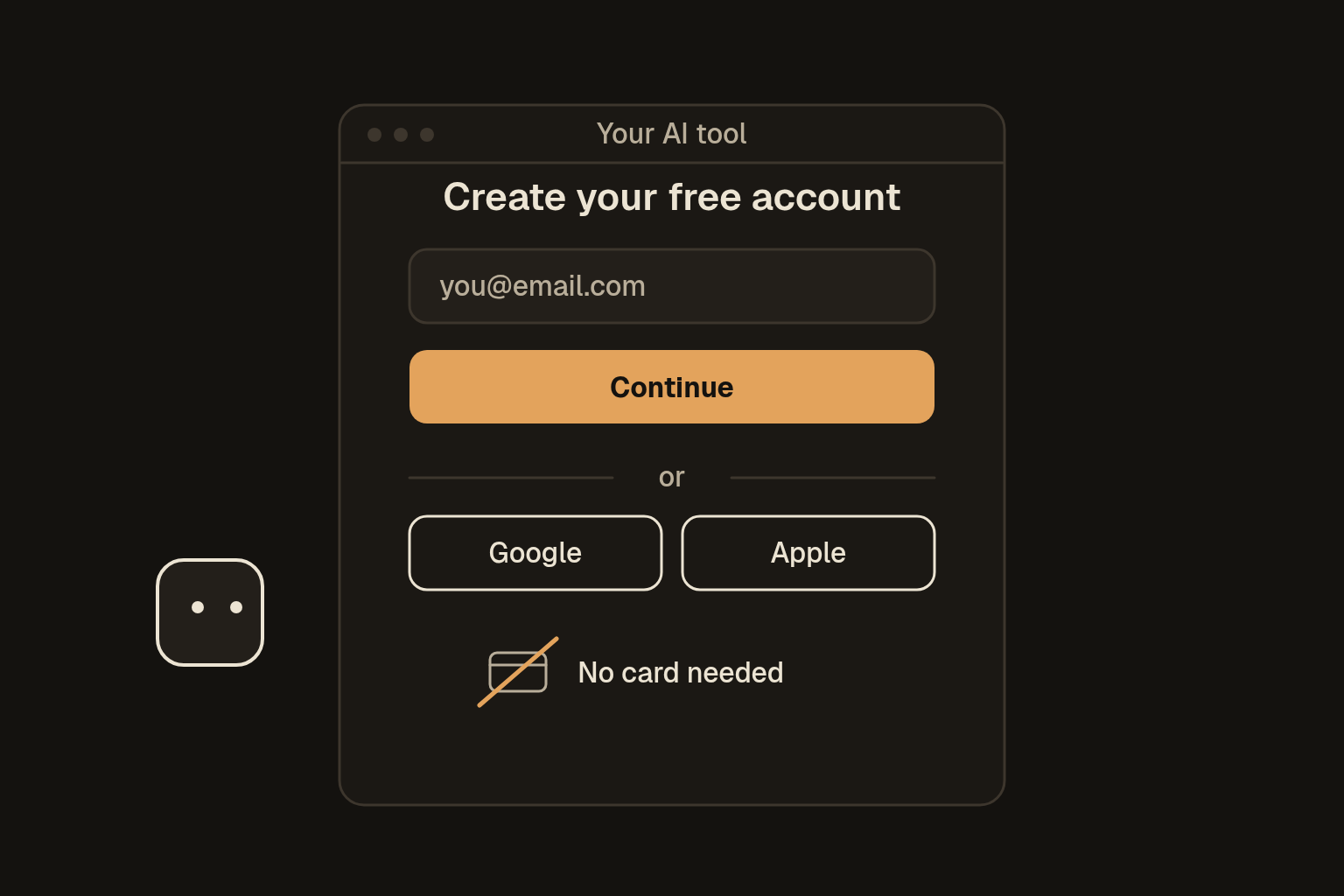
Click Sign up, then either type your email and make a password, or use Continue with Google or Apple. The Google or Apple button is the quickest.
02The screen
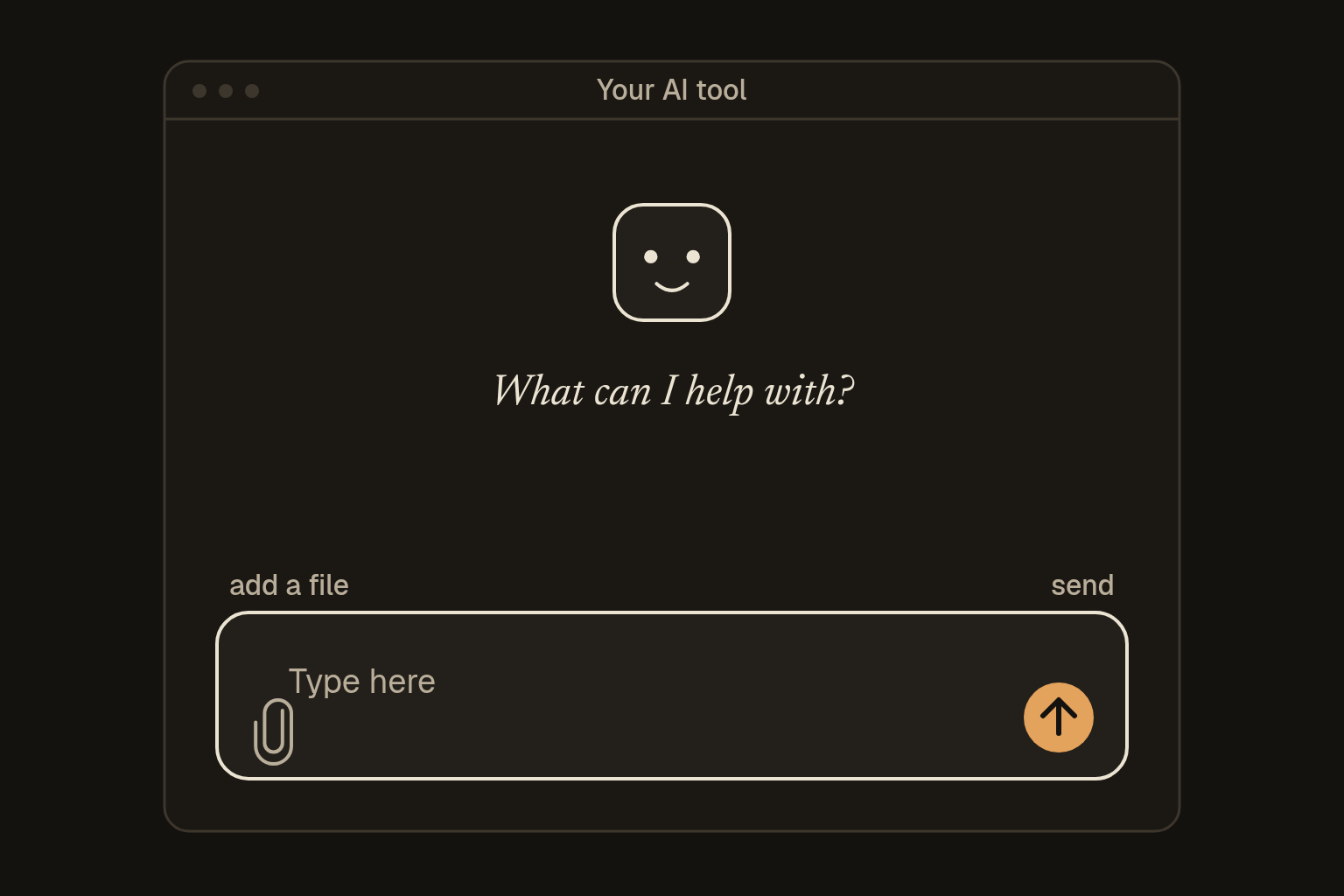
Once you're in, there's one big text box near the bottom, and that's where you type. Two things next to it are worth knowing. The paperclip (or a +) adds a file, like a photo or a document. The send arrow (or Enter) sends your message. You can ignore everything else for today.
03Before anything private
Two settings are worth turning on before you paste anything you'd rather keep to yourself. Look in the tool's settings for a section called something like data controls or privacy.
- Training. There's usually a switch that lets the company use your chats to improve its models. On a free or personal account it's often on. Turn it off.
- Temporary chat. Most tools have a temporary or incognito chat that stays out of your history. The company may still hold it for a short time, so scrub anything sensitive first anyway.
Temporary chat is usually a button or menu option at the top of a new chat. If you can't find either setting, paste nothing but gaps like [name] until you do. Your first message below is fine either way. What not to paste covers the rest.
04Your first message
Click in the box and type this. Swap [name] for a first name, or leave it as it is:
Write a short, friendly reminder to [name] that their appointment is tomorrow at [time]. Give me two versions, one casual and one more formal.Hit send and wait a couple of seconds.
This one works because it says who the message is for, what it needs to say and what you want back, and it has gaps where the real details would go. If your earlier tries came back bland, the request was probably the reason, and the next page shows you how to fix that for any job.
05Talk back
Read what came back. If it isn't quite right, there's no need to start again. Reply the way you'd text someone helpful:
- "Make it shorter."
- "Less formal, I'm texting a friend."
- "I didn't understand that bit, say it more simply."
It can see what you've said earlier in that chat, so each reply builds on the last. That back and forth is most of how you use it.
06Spot a fake
The real tools are free to try and never ask for your bank login. If something wants you to pay to "unlock" it, or asks for a password to another account, it's a scam, so close the tab.
- Type the address yourself, or get the app from the official app store. Don't tap a link in an email, a text or an ad shouting "FREE AI".
- Check who made it. OpenAI makes ChatGPT, Anthropic makes Claude and Google makes Gemini. A copycat with a name a letter or two off is a red flag.
- Remember it can be wrong and still sound sure of itself. It's a good helper for drafting and explaining, and it isn't the place to make a medical, legal or money decision on its own.
That's a first session done. When something plays up, such as an answer stopping halfway, When it plays up has the quick fixes.